

Apple has always been known for offering a wide range of customization options when configuring our computers for those with vision problems. Among these customization options, macOS allows us to increase or decrease the size of the icons displayed on our desktop.
Increasing or decreasing the size of desktop icons on your computer allows you to fit more items onto the desktop (by reducing their size) or simply enlarge them to better see both the name and some of their content. This process is very simple , and we at Soy de Mac will show you how to do it.
To enlarge or decrease the size of the icons on our desktop, we have to position ourselves anywhere on it and click on the right mouse button or press with two fingers on the trackpad.
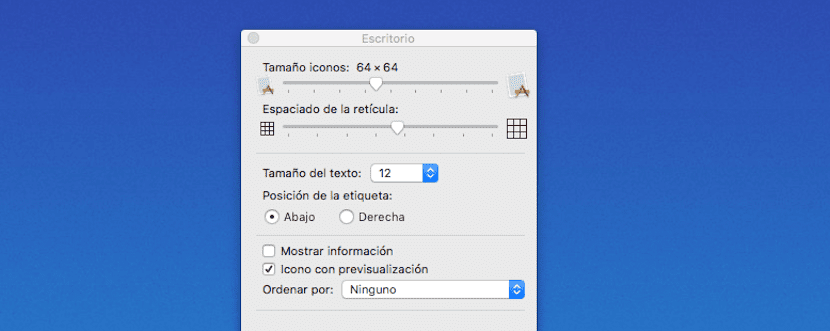
Next, we click on Show display options . In the menu that appears, we see that the default icon size is 64x64 pixels. To increase or decrease the size of the icons, simply slide the bar to the left to make them smaller, or to the right to make them larger.
The next option allows us to set the spacing of files on the desktop grid , enabling us to increase or decrease the spacing between files. It also allows us to increase the font size of files on our desktop and change the position of file labels.
In addition, it also allows us to display thumbnail previews of files , along with file details, ideal for when we have directories or many images on our Mac desktop. Once we've made all the desired changes, we close the window. Each time we make a change, it will be immediately reflected on the desktop.